Set it up in Elementor.
Screenshots: Quiet Addons 0.10.2 in Elementor. Labels may differ with your editor language or version.
STEP 01
Choose where the video plays.
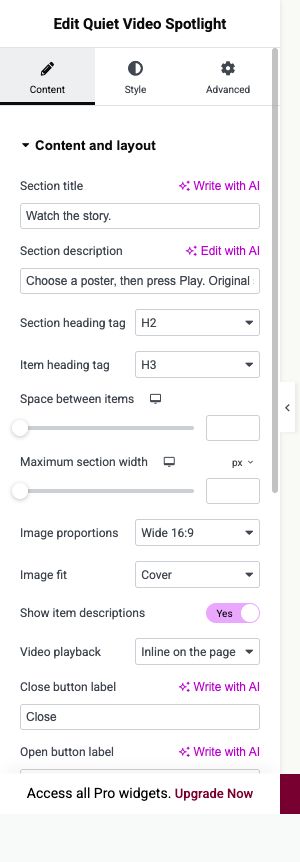
Content → Content and layout
Add Quiet Video Spotlight and introduce your video selection.
- Video playback
- Choose Lightbox or Inline on the page. Playback loads only after the visitor selects Play.
- Image proportions and Image fit
- Set the poster proportions and crop mode before adding your media.
- Open button label and Close button label
- Use clear action labels. Check closing when you choose lightbox playback.
Open image to view at full size.
STEP 02
Add video, poster and captions.
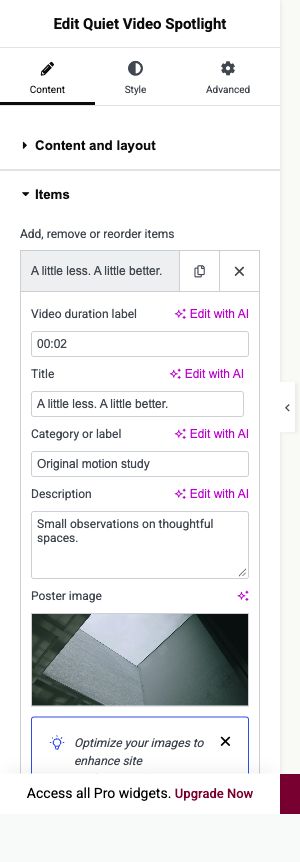
Content → Items
Create an item for each film in the playlist.
- Self-hosted video and Poster image
- Select an MP4 or WebM and a poster. YouTube and Vimeo embeds are not supported by this control.
- Title, Description and Video duration label
- Explain the film. The duration label is entered manually.
- WebVTT captions file URL
- Add a valid caption URL, Caption language code and Caption track label. Test that your hosting serves both video and captions.
Open image to view at full size.
STEP 03
Make the playlist easy to browse.
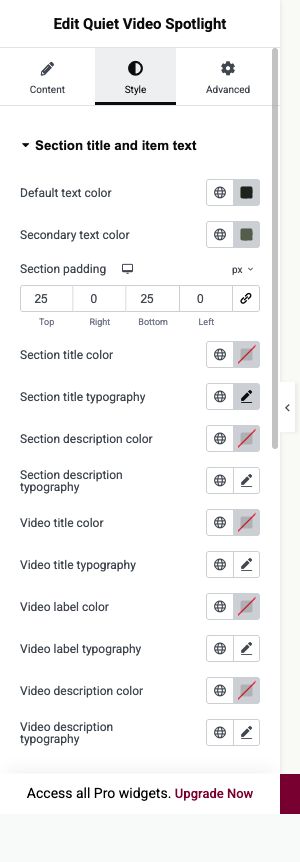
Style → Section title and item text; Selectors and lightbox text
Use the Video title, Video label and Video description typography controls for the featured content.
- Cards and images
- Set card styling and poster position. Check the crop against each film’s poster.
- Video playlist
- Style the playlist and selected item so visitors can identify the current film.
- Playback check
- Test Play, caption selection and switching videos. For lightbox mode, also test Escape and returning focus to the opener.
Open image to view at full size.
Before you finish.
Replace the sample content, check links and image alternatives, and test the saved page on desktop, tablet and mobile. Check both the Elementor editor and the visitor view.