Set it up in Elementor.
Screenshots: Quiet Addons 0.10.2 in Elementor. Labels may differ with your editor language or version.
STEP 01
Choose how the stories progress.
Content → Content and layout
Add Quiet Story Slider and introduce the sequence.
- Starting story and Seconds per story
- Choose the first story and a duration between 3 and 30 seconds. Playback starts paused; the duration applies after Play.
- Desktop image position
- Choose the left or right side. Mobile image proportions applies below 768px. On larger screens the image fills the story panel height. Image fit controls the crop.
- Visibility controls
- Choose whether thumbnails, progress bars, arrows and the Play/Pause button appear. Write clear button labels.
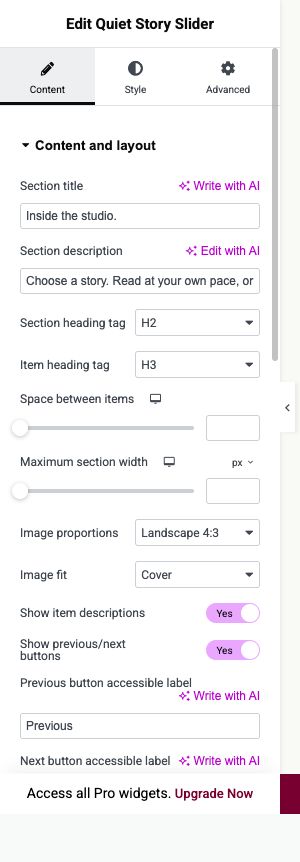
Open image to view at full size.
STEP 02
Create the story sequence.
Content → Items
Add an image and a focused piece of text for every story.
- Title, Category or label and Description
- Write one clear moment per story rather than repeating the same content.
- Image and Image alternative text
- Use consistent image framing and meaningful alternative text.
- Link label and Link
- Add an optional destination. Reorder stories into the sequence you want visitors to follow.
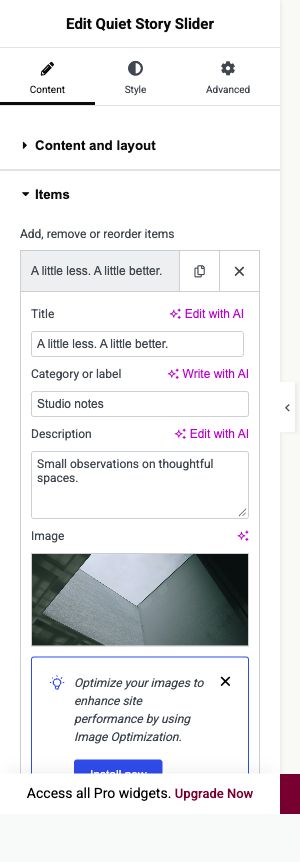
Open image to view at full size.
STEP 03
Make the current story clear.
Style → Story thumbnails and progress
Style the story text separately under Section title and item text.
- Thumbnail diameter and Selected thumbnail border
- Adjust the selector size and the visual marker for the current story.
- Inactive progress track color
- Set the track colour with enough contrast against the background.
- Current story and progress color
- Choose the active colour. Verify the current marker while paused, then check Play, Pause and story changes.
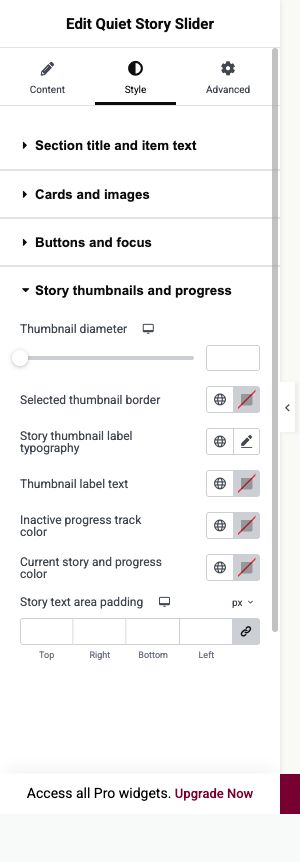
Open image to view at full size.
Before you finish.
Replace the sample content, check links and image alternatives, and test the saved page on desktop, tablet and mobile. Check both the Elementor editor and the visitor view.