Set it up in Elementor.
Screenshots: Quiet Addons 0.10.2 in Elementor. Labels may differ with your editor language or version.
STEP 01
Choose a presentation for the details.
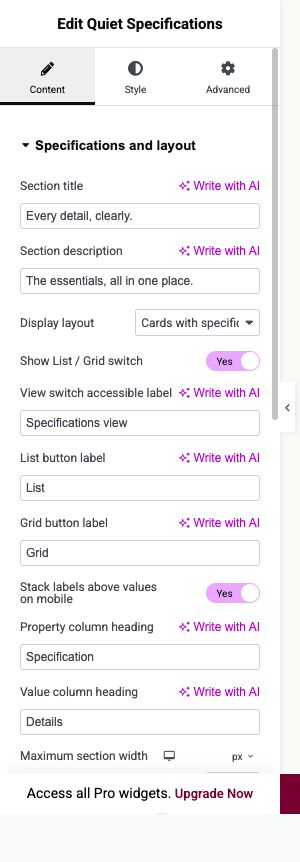
Content → Specifications and layout
Add Quiet Specifications. Choose the layout that suits the information.
- Display layout
- Select Table, Compact list, Cards with specifications or List with images.
- Show List / Grid switch
- Available for Cards with specifications and List with images. Enable it to let visitors change the view.
- Card columns
- Set responsive columns. Choose whether labels stack above values on mobile.
Open image to view at full size.
STEP 02
Build groups and their properties.
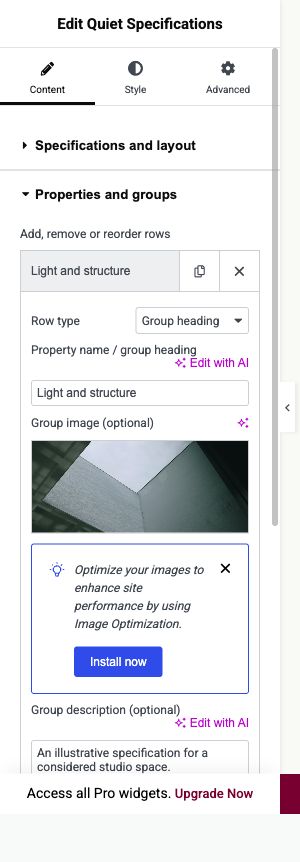
Content → Properties and groups
Insert a group before the properties that belong to it.
- Row type
- Use Group heading to begin a group, then Property for its values. Move a group and its following property rows together when reordering.
- Group image (optional)
- Add an image, its alternative text and an optional group description.
- Value and Optional explanation
- Use readable plain text. Line breaks are preserved in values.
Open image to view at full size.
STEP 03
Align the images and text.
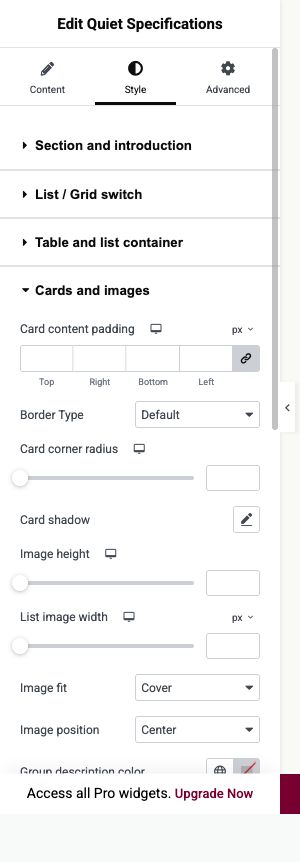
Style
Check both visitor views if you enabled the List / Grid switch.
- List image width
- Set the width used for images beside the specification details.
- Image fit and Image position
- Cover fills the image area, including taller list rows. Adjust the image position to keep the subject visible.
- List / Grid switch
- Style the selected button and keyboard focus so the current view is clear.
Open image to view at full size.
Before you finish.
Replace the sample content, check links and image alternatives, and test the saved page on desktop, tablet and mobile. Check both the Elementor editor and the visitor view.