Set it up in Elementor.
Screenshots: Quiet Addons 0.10.2 in Elementor. Labels may differ with your editor language or version.
STEP 01
Compose the portrait and biography.
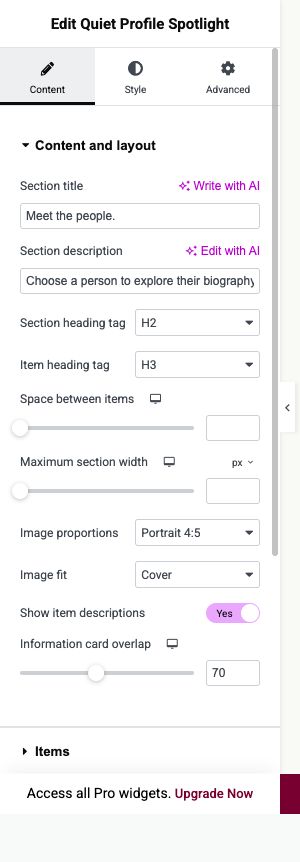
Content → Content and layout
Add Quiet Profile Spotlight with a short introduction to the people.
- Image proportions and Image fit
- Choose a portrait ratio and crop mode suited to the images.
- Information card overlap
- Use the responsive control to adjust the biography card overlap. Check the mobile composition too.
- Space between items
- Adjust the surrounding spacing without adding separate profile widgets.
Open image to view at full size.
STEP 02
Add each person and their links.
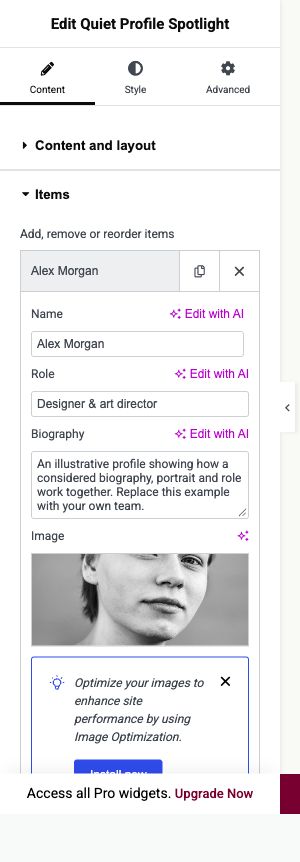
Content → Items
Create one item per person in the selector.
- Name, Role and Biography
- Use the person’s real name and describe their role and work.
- Image and Image alternative text
- Choose a portrait and suitable alternative text.
- Profile and social links
- Add the main Link and optional Instagram, LinkedIn or Website link. Leave unused links empty; no feed connection is created.
Open image to view at full size.
STEP 03
Style names, biographies and selectors.
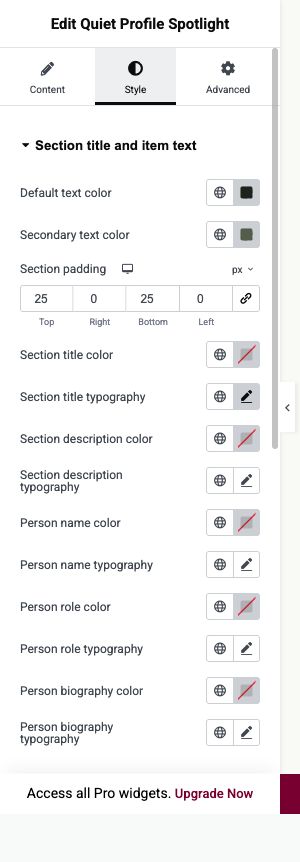
Style → Section title and item text; Selectors and lightbox text
Use Person name, Person role and Person biography typography for the corresponding text.
- Cards and images
- Style the biography card background, border, corners and portrait position.
- Person selector
- Adjust the selector text and background, then check the selected border.
- Buttons and focus
- Verify every person can be selected and every configured profile link opens the right destination.
Open image to view at full size.
Before you finish.
Replace the sample content, check links and image alternatives, and test the saved page on desktop, tablet and mobile. Check both the Elementor editor and the visitor view.