Set it up in Elementor.
Screenshots: Quiet Addons 0.10.2 in Elementor. Labels may differ with your editor language or version.
STEP 01
Choose the billing and card layout.
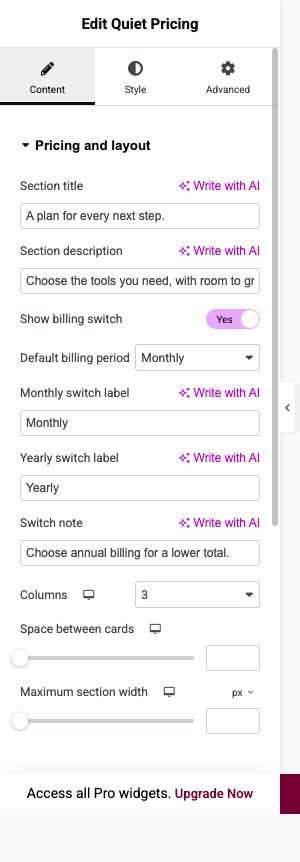
Content → Pricing and layout
Add Quiet Pricing and enter your section title and introduction.
- Show billing switch
- Enable the switch if visitors should compare monthly and yearly prices. Choose Default billing period.
- Columns
- Choose a card count for desktop, tablet and mobile. Use the device controls rather than duplicating the widget.
- Maximum section width
- Limit the section width when the cards should sit inside a wider page.
Open image to view at full size.
STEP 02
Create each offer.
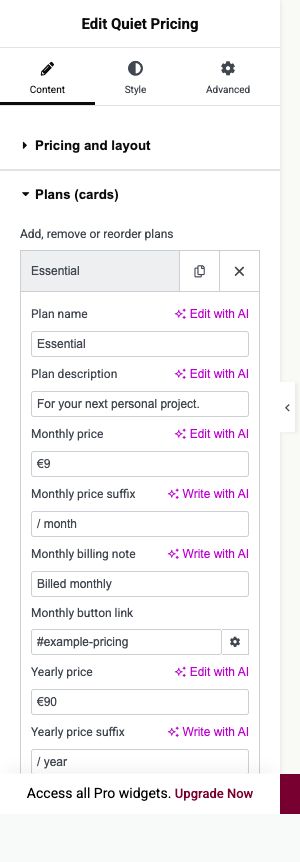
Content → Plans (cards)
Open a plan or add one, then replace every example value with your own.
- Prices and links
- Enter the monthly and yearly amounts and the corresponding action links. The widget presents the offer; it does not process payments.
- Features
- Enter one feature per line. Prefix it with + for included or - for not included; a line without a prefix is included.
- Highlight this plan
- Emphasise a chosen offer. Reorder the cards to create a deliberate reading order.
Open image to view at full size.
STEP 03
Style prices and actions clearly.
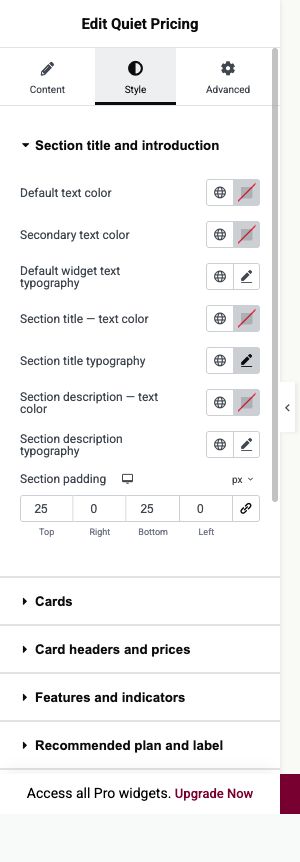
Style
Work through the named text and card controls with your real plans visible.
- Typography controls
- Adjust plan names, prices, features and button text independently using their named controls.
- Card border
- Set the outline and card styling without reducing the contrast of the text.
- Billing switch
- Check the selected period and savings labels against the prices you actually entered.
Open image to view at full size.
Before you finish.
Replace the sample content, check links and image alternatives, and test the saved page on desktop, tablet and mobile. Check both the Elementor editor and the visitor view.