Set it up in Elementor.
Screenshots: Quiet Addons 0.10.2 in Elementor. Labels may differ with your editor language or version.
STEP 01
Introduce the questions and result.
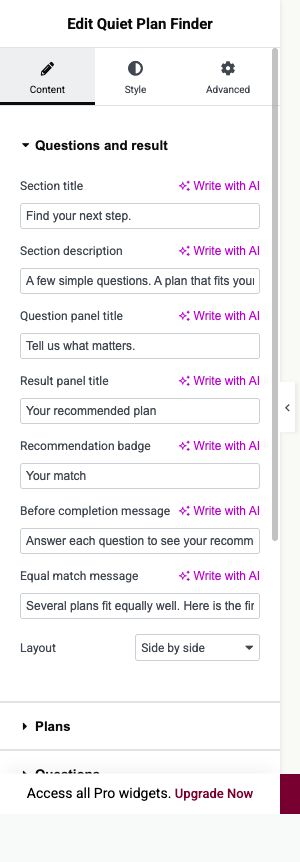
Content → Questions and result
Add Quiet Plan Finder and explain what answering the questions will help visitors choose.
- Panel titles and result text
- Replace the example introduction, result heading and unanswered-state text with your own.
- Layout
- Choose Side by side or Stacked in Elementor.
- Equal match message
- Explain an equal result if needed. When scores are equal, plan order determines which matching plan appears first.
Open image to view at full size.
STEP 02
Connect answers to available plans.
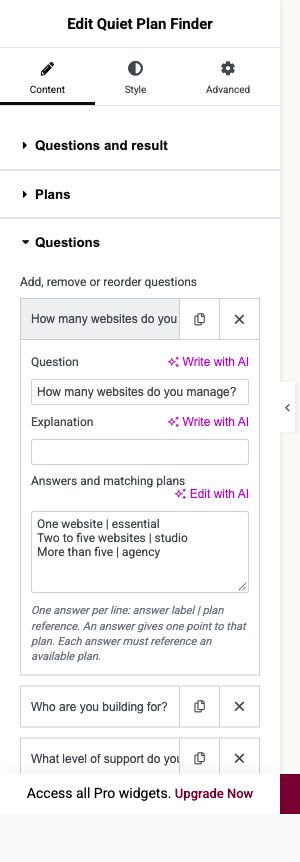
Content → Plans and Questions
Create your plans before mapping the answers.
- Available plans
- Give every plan a unique reference, name, description, displayed price and optional action link. Reorder plans deliberately for tied scores.
- Answers and matching plans
- Enter one answer per line as answer label | plan reference. Use an existing plan reference; each answer awards one point to that plan.
- Add, remove or reorder questions
- Ask focused questions, add helpful explanations and test a complete answer set for every intended recommendation.
Open image to view at full size.
STEP 03
Give the recommendation a clear place.
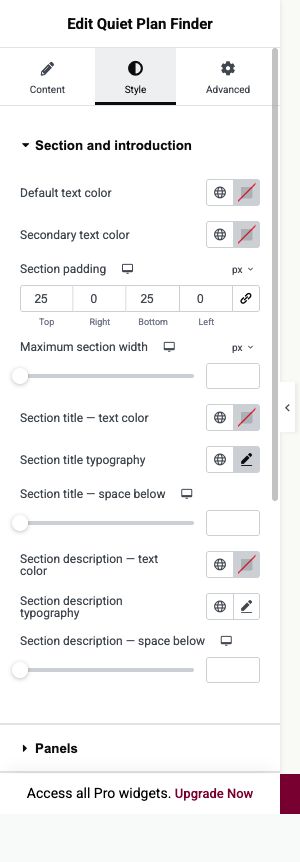
Style
Use the named question and result controls to match your website.
- Panels
- Adjust the question and result backgrounds, padding, gap and outline.
- Fields and result
- Style question labels, helper text, result name and displayed price independently.
- Button
- Check every recommended plan links to its intended destination. Matching follows your configuration, not an AI service.
Open image to view at full size.
Before you finish.
Replace the sample content, check links and image alternatives, and test the saved page on desktop, tablet and mobile. Check both the Elementor editor and the visitor view.