Set it up in Elementor.
Screenshots: Quiet Addons 0.10.2 in Elementor. Labels may differ with your editor language or version.
STEP 01
Add your photographs and their stories.
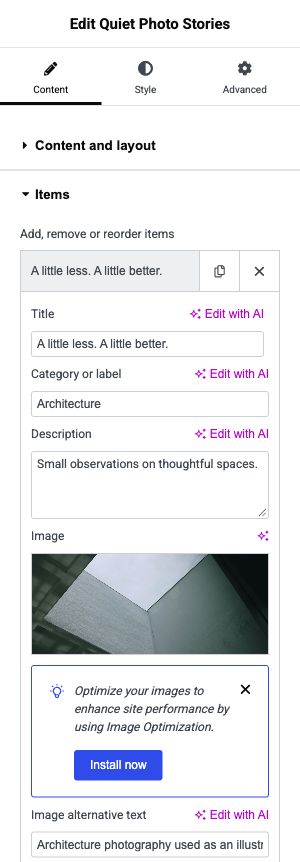
Content → Items
Open Quiet Photo Stories in Elementor, select Content, then expand Items. Open an item or choose Add Item.
- Title
- Enter the heading for this photograph.
- Category or label
- Use the same label for photos that should appear under the same category filter, for example Architecture.
- Description
- Write the short story displayed with this photo.
- Image and Image alternative text
- Choose your photo and describe its meaningful content for people who cannot see it.
Open image to view at full size.
STEP 02
Keep your photographs aligned.
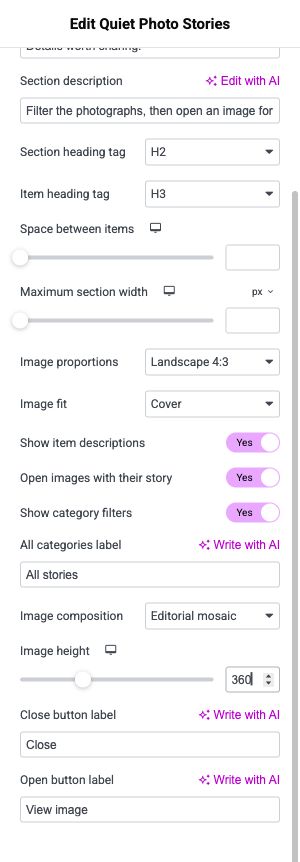
Content → Content and layout
Choose Editorial mosaic for varying card widths, or Even grid for regular columns. Image height controls the photo height in either composition.
- Image fit: Cover
- Fills the image area and crops the edges when needed. Choose photos whose subject remains clear after cropping.
- Image height
- Enter a height in pixels. The screenshot shows 360 px as an example, not a required setting.
- Device icon next to Image height
- Switch to tablet or mobile to enter a height for that screen size. A blank device value inherits the larger-screen setting.
- Show category filters
- Enable this to let visitors browse the categories entered under Items.
Open image to view at full size.
STEP 03
Match the widget to your website.
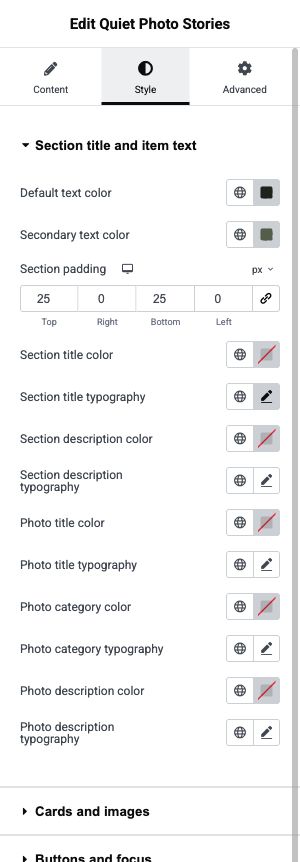
Style → Section title and item text
Open Style to edit the appearance. These are manual Elementor settings; the demo design is an example, not a selectable theme.
- Section title and item text
- Each typography control names its target: Section title typography, Section description typography, Photo title typography, Photo category typography and Photo description typography. Open the pencil icon beside the control you want to change.
- Section padding
- Adjust the space around the widget. Use the device icon for responsive spacing.
- Cards and images
- Expand this section to adjust card backgrounds, borders, corners, image rounding and content padding.
Open image to view at full size.
Before you finish.
Replace the sample content, check links and image alternatives, and test the saved page on desktop, tablet and mobile. Check both the Elementor editor and the visitor view.