Set it up in Elementor.
Screenshots: Quiet Addons 0.10.2 in Elementor. Labels may differ with your editor language or version.
STEP 01
Set up the table and billing.
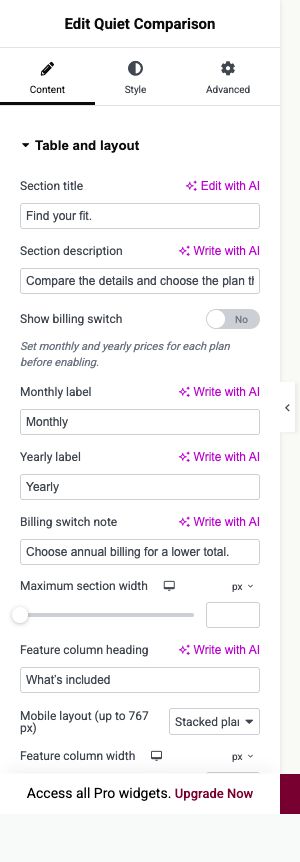
Content → Table and layout
Add Quiet Comparison and enter your section title and description. Choose the table behaviour before entering the offers.
- Show billing switch
- Enable monthly/yearly selection when you have prices for both periods. Set Default billing period and the labels to match your offer.
- Mobile layout (up to 767 px)
- Choose how the comparison is presented on a narrow screen. Check long feature labels and plan names in the saved page.
Open image to view at full size.
STEP 02
Connect feature rows to the plans.
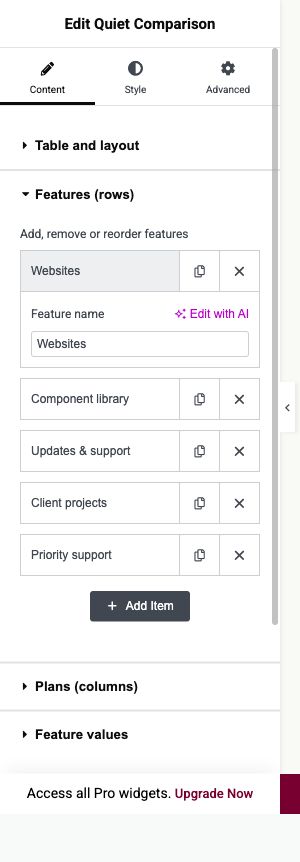
Content → Features (rows), Plans (columns), Feature values
Create the feature rows and plans first, then enter the comparison values.
- Features (rows)
- Add and reorder the features visitors should compare. Use short, recognisable feature names so their value rows are easy to identify.
- Plans (columns)
- Add each offer, its prices and action link. Use Highlight this plan for the offer you want to emphasise.
- Feature values
- In the comparison grid, choose Included or Not included, or enter Custom text for each feature and plan. Leave the field to save the value, then test the saved page.
Open image to view at full size.
STEP 03
Make the table fit your content.
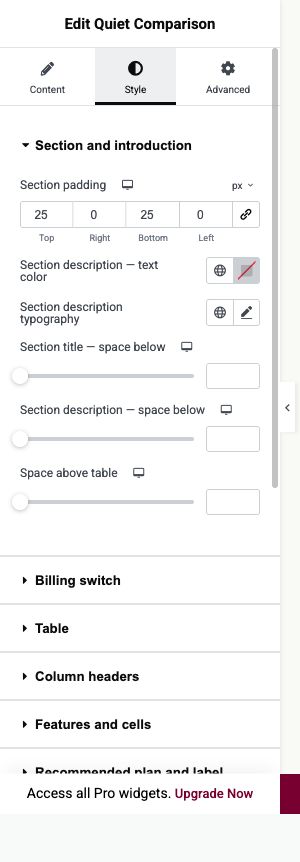
Style
Style the table after the real content is in place.
- Typography controls
- Use the named typography controls for the specific table element you want to change.
- Table border and Value alignment
- Adjust the table outline and how feature values align. Keep inclusion indicators readable.
- Billing switch and buttons
- Check selected, hover and keyboard-focus states, including on mobile.
Open image to view at full size.
Before you finish.
Replace the sample content, check links and image alternatives, and test the saved page on desktop, tablet and mobile. Check both the Elementor editor and the visitor view.