Set it up in Elementor.
Screenshots: Quiet Addons 0.10.2 in Elementor. Labels may differ with your editor language or version.
STEP 01
Frame the browsable row.
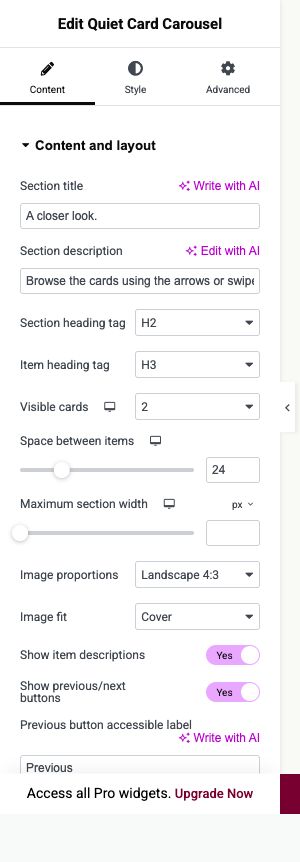
Content → Content and layout
Add Quiet Card Carousel and introduce what the cards contain.
- Visible cards
- Set the number of visible cards separately for desktop, tablet and mobile.
- Image proportions and Image fit
- Choose a ratio. Cover fills it by cropping; Contain keeps the full image visible.
- Space between items and arrows
- Set the card spacing and choose whether navigation arrows should appear.
Open image to view at full size.
STEP 02
Add and order the cards.
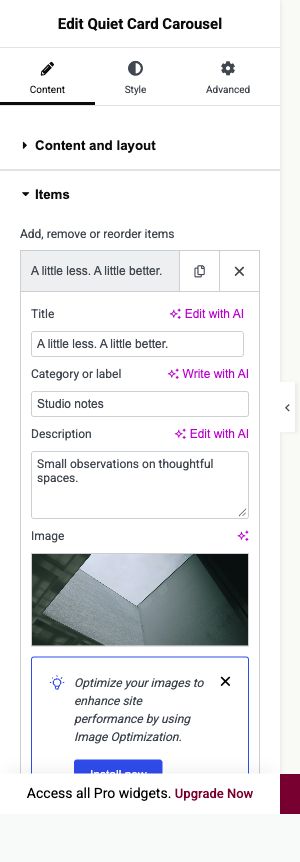
Content → Items
Open an item or add one for each project, update or highlight.
- Title, Category or label and Description
- Replace the example copy with short, useful card content.
- Image and Image alternative text
- Choose the photograph and describe meaningful content for people who cannot see it.
- Link label and Link
- Add an optional next step for the card. Reorder items into the browsing sequence you want.
Open image to view at full size.
STEP 03
Style the cards and images.
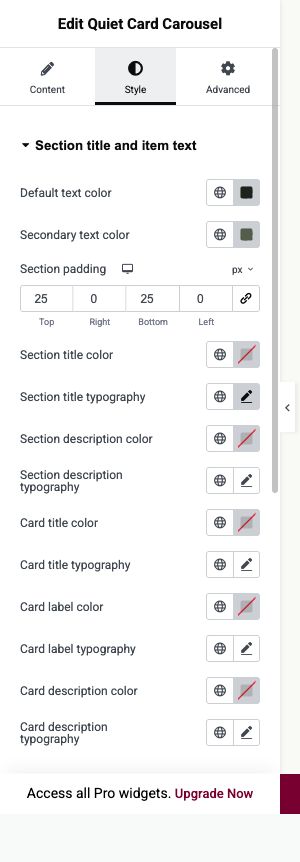
Style → Section title and item text; Cards and images
Use the named Card typography controls for titles, labels and descriptions.
- Cards and images
- Adjust backgrounds, borders, corners and Text area padding.
- Image position
- Set the focal position when Cover crops the photograph.
- Buttons and focus
- Check arrows, action links and keyboard focus. Test horizontal browsing on the saved page.
Open image to view at full size.
Before you finish.
Replace the sample content, check links and image alternatives, and test the saved page on desktop, tablet and mobile. Check both the Elementor editor and the visitor view.