Set it up in Elementor.
Screenshots: Quiet Addons 0.10.2 in Elementor. Labels may differ with your editor language or version.
STEP 01
Define the estimate and result.
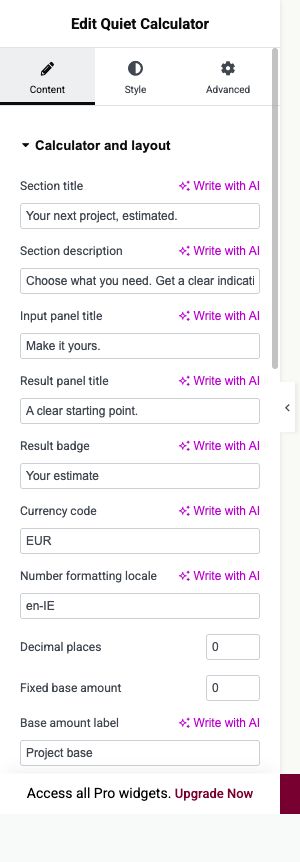
Content → Calculator and layout
Add Quiet Calculator and replace the input and result panel titles.
- Fixed base amount
- Enter any amount included before the visitor makes choices. Give it a clear Base amount label.
- Currency code, Number formatting locale and Decimal places
- Choose how amounts are displayed. This formats an estimate; it does not calculate tax or process payments.
- Price note, Result explanation and Button link
- Explain what the estimate includes and link to your next step. Choose Side by side or Stacked under Layout.
Open image to view at full size.
STEP 02
Add choices, quantities and extras.
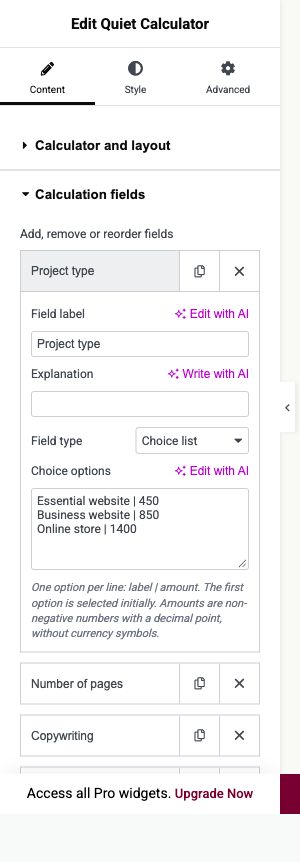
Content → Calculation fields
Add a field for each decision that changes the estimate.
- Choice options
- For Choice list, enter one option per line as label | amount. Use a decimal point and no currency symbol. The first option is selected initially.
- Quantity input
- Choose Number input or Slider. Set price per unit, minimum, maximum, starting quantity and step.
- Optional extra
- Enter the extra amount and choose whether Extra selected initially should be enabled. Test the breakdown with the extra on and off.
Open image to view at full size.
STEP 03
Keep the estimate readable.
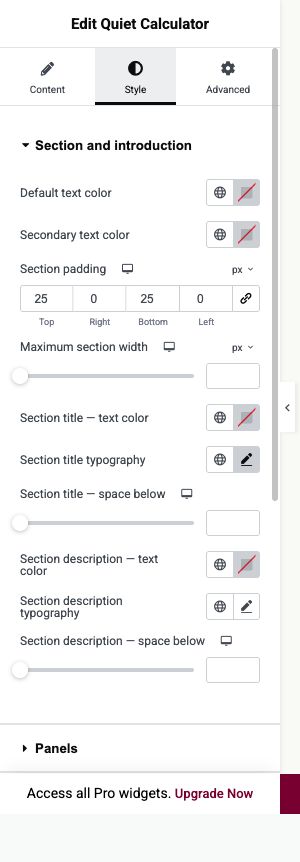
Style
Style the result and inputs separately, then test the largest likely total.
- Panels
- Adjust panel padding, gap, backgrounds and borders.
- Fields and result
- Use the named controls for labels, help text, result price and badge. Keep number inputs readable.
- Button
- Style the result action and verify its destination on the saved page.
Open image to view at full size.
Before you finish.
Replace the sample content, check links and image alternatives, and test the saved page on desktop, tablet and mobile. Check both the Elementor editor and the visitor view.